
Published: · UBIK365 Kft.
Locking down and remotely managing in-store tablets: lessons from the Tchibo case for SMEs
Customer and staff tablets in a shop: how lock-down, restriction and remote management are built from the components of the Essentials licence.
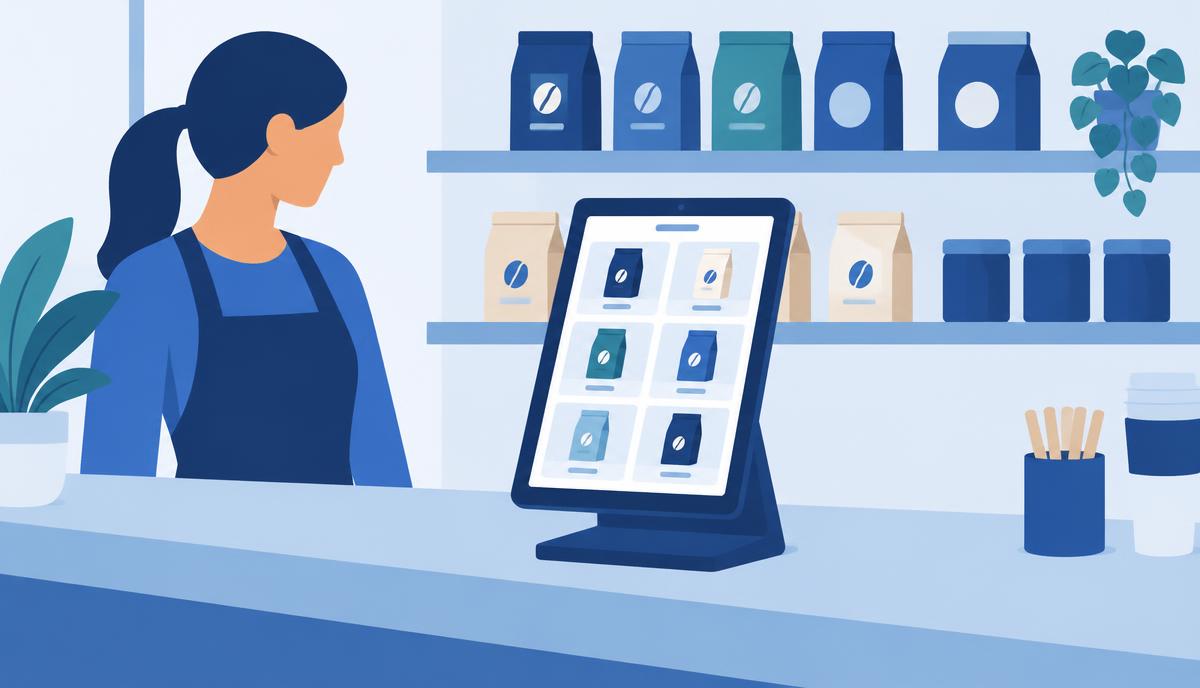
In Tchibo shops, tablets placed out for customers and staff are locked down, restricted and managed remotely. That is all we know about the case – and this article doesn't claim more. Below we describe, at a general “this is how it can be done” level, how a similar setup can be built in a small or mid-sized company with the components of the Samsung Knox Suite – Essentials Plan. Every further detail refers to the general solution, not to the customer.
Why an in-store tablet is different from a company phone
A company phone belongs to one person. A tablet in a shop belongs to many: customers and staff touch it several times a day, there is usually no IT person on site, and the device can physically be moved. So three things are needed at once: the device should only be usable for its purpose, settings shouldn't be breakable, and if something goes wrong, help should come centrally.
Two use cases, two policies
Customer tablet: single-app kiosk
For a customer tablet the simplest option is Knox Manage's single-app kiosk mode: after power-on the tablet launches the chosen app – a catalogue or loyalty interface, for example – and users can't exit it. The notification bar, settings and other apps are unavailable. The kiosk can show your own logo and background.
Staff tablet: multi-app kiosk
Staff tablets may need several apps: stock management, internal communication, training materials. That's what the multi-app kiosk is for: the apps selected in the console appear in folders and everything else stays hidden. The two device types get separate profiles and policies, so a central change only affects the right group.
Rules that adapt to the situation
With Knox Manage event-based policies, restrictions can be tied to time or place. After closing time a staff tablet can switch to a stricter mode, or if an Android tablet leaves the shop's defined area (geofence) a different policy can take effect. Rules tied to a Wi-Fi network (SSID) are useful too: the tablet only reaches internal systems on the shop network.
Remote support for the shops
When a tablet “doesn't work”, the colleague on site rarely can describe the problem precisely. Knox Remote Support is part of Essentials: central IT sees the Android tablet's screen live from the Knox Manage console, can take control, restart a stuck app or change a setting. Roles define who may start a session and whether they can only watch or also control. On non-Samsung Android devices the on-site user has to approve the session.
If a tablet goes missing
A moved or missing tablet can be locked, suspended or, as a last resort, wiped from the console, and its last known location can be viewed. Company access on the device therefore doesn't end up in the wrong hands.
Opening a new shop: the tablet sets itself up
If the tablets are Samsung Galaxy devices bought through an authorised reseller, Knox Mobile Enrollment's standard settings bring them under Knox Manage automatically at first boot, and they download the right kiosk profile and apps. When a new shop opens there's no need to send IT on site just to set up tablets, and replacing a broken device works the same way.
What you need from the Essentials licence
- Knox Manage – kiosk mode, policies, event-based rules, locking and wiping.
- Knox Remote Support – remote screen sharing and control on Android tablets.
- Knox Mobile Enrollment (standard) – automatic enrolment for Galaxy tablets.
- Knox Platform for Enterprise – deeper, Galaxy-specific security settings.
What this setup usually doesn't need is Knox Capture for barcode scanning or firmware control (Knox E-FOTA) – those belong to the Enterprise Plan. If the tablets run an in-house app and it matters that an Android update doesn't catch you by surprise, it's worth discussing Enterprise too.
Planning in-store tablets? Request a licence quote: just tell us how many tablets, which type, and what they'll be used for.